Diamond Dots
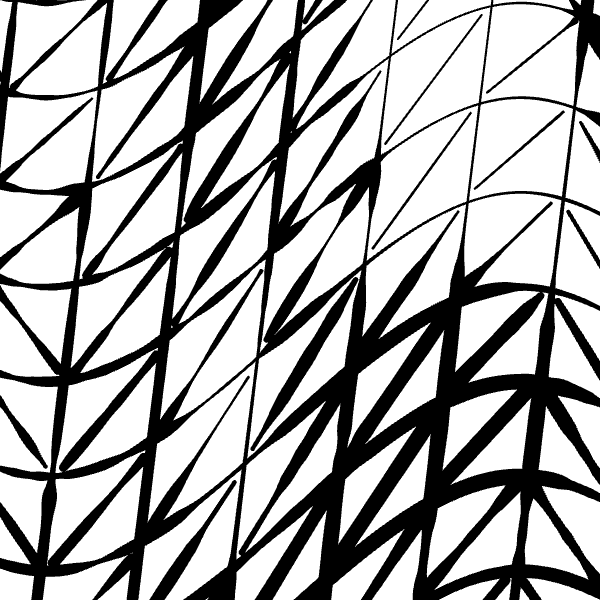
The Diamond Dots fill is designed to fill empty cells created where fill strokes intersect. A short stroke is placed in the center of each closed cell and aligned with the cell’s longest diagonal.
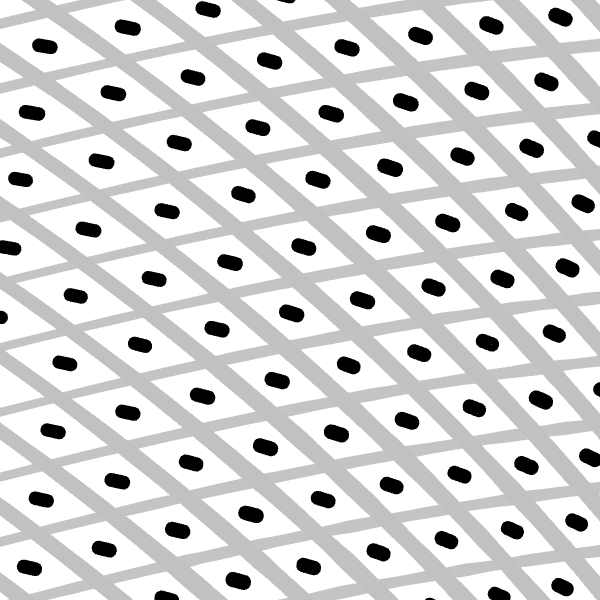
This fill works as a finishing element that adds detail to the image and visually balances empty spaces between intersecting strokes.
To create a Diamond Dots fill, select one or more intersecting fills that form closed cells, and then choose Fill → Create Diamond Dots.
Diamond dots can only be generated inside closed cells formed by intersecting fill strokes.
Create a Diamond Dots Fill
To create a Diamond Dots fill, follow these steps:
- Select one or more intersecting fills.
- Make sure that the selected strokes form closed cells.
- Open the Fill menu.
- Select Create Diamond Dots.
- Vexy Lines will place a short stroke in the center of each detected cell.
Each generated stroke is automatically aligned with the longest diagonal of its cell.
Diamond Dots Parameters
Diamond Dot Length
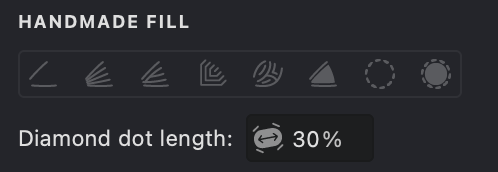
The Diamond Dot Length parameter controls the length of each generated stroke as a percentage of the maximum available length inside the cell.
- Locate the Diamond Dot Length parameter.
- Use the slider or enter a value manually.
- Adjust the value to change the length of the strokes inside the cells.
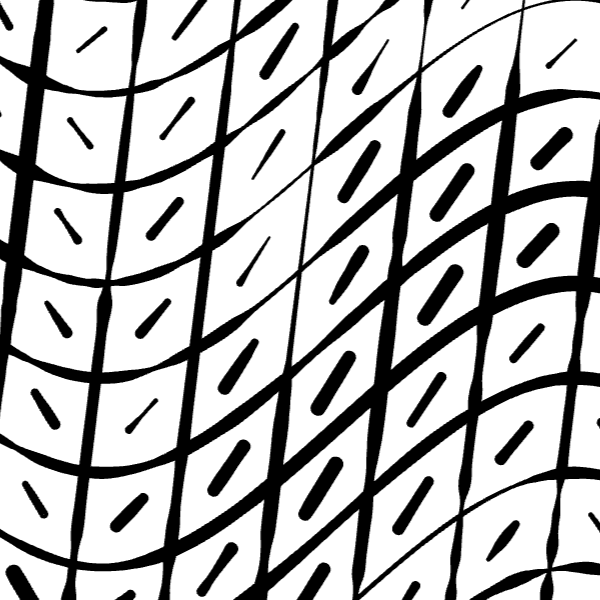
- 100% creates a stroke that occupies the maximum available length along the cell’s longest diagonal.
- Lower values create shorter strokes.
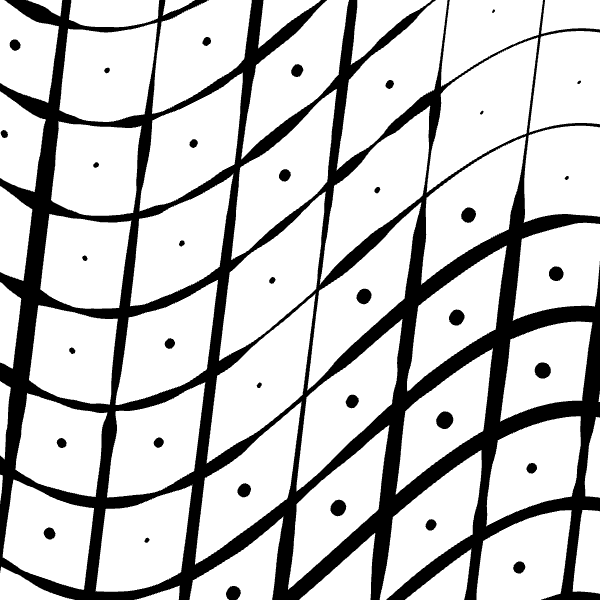
- 0% reduces the stroke to a point.
Increasing the Diamond Dot Length makes the fill more prominent, while decreasing it creates a lighter and more subtle effect.
| 0% | 30% | 100% |
|---|---|---|
 |
 |
 |