Spiral
The Spiral fill type in Vexy Lines produces a continuous spiral engraving using one smooth line. Use this fill for a clean, mechanical engraving effect in your design.

Fill Parameters
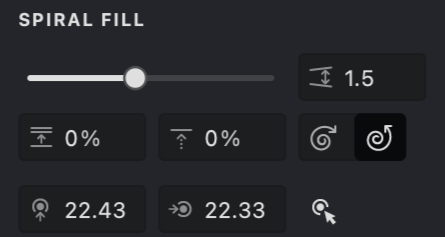
 Interval (units): Sets the distance between each turn of the spiral. Use a lower value for a tighter engraving and a higher value for more space.
 Interval Randomization (%): Adds a small random variation to the spacing for a slightly hand-crafted look.
 Stroke Shift: Adjusts the starting point of the spiral turns.
 Center (units): Determines the center point from which the engraving begins.
 Direction (CW): Set the spiral direction to clockwise.
 Direction (CCW): Set the spiral direction to counterclockwise.
These parameters let you fine-tune the engraving to suit your design.
Add and Customize a Spiral Fill
To create a new Spiral fill, follow the steps in our Add a Fill guide and select Spiral.
.png)
Fine-tuning your Spiral fill involves adjusting its parameters. Here's a simple guide:
-
Access Properties: Go to the Properties panel, usually on the right side of the Vexy Lines interface.
-
Locate Parameter: In the Properties panel, switch to the SPIRAL FILL tab and find the parameter you wish to adjust.
Feel free to experiment with these parameters to create unique and dynamic engraving patterns for your vector artwork.
Interval
- Find the Interval parameter.
- Adjust the distance using the slider or by typing a value.
| interval: 1 | interval: 2 | interval: 3 |
|---|---|---|
-01.png) |
.png) |
-01.png) |
Randomization
- Find the Randomization parameter.
- Adjust it to add variation to the spacing.
- Higher values make the engraving less uniform.
| randomization: 10% | randomization: 50% | randomization: 100% |
|---|---|---|
.png) |
.png) |
-01.png) |
Shift
- Find the Shift parameter.
- Adjust it to change the starting angle of the spiral.
- This alters the overall orientation of the engraving.
| shift: 15% | shift: 50% | shift: 70% |
|---|---|---|
.jpg) |
.jpg) |
.jpg) |
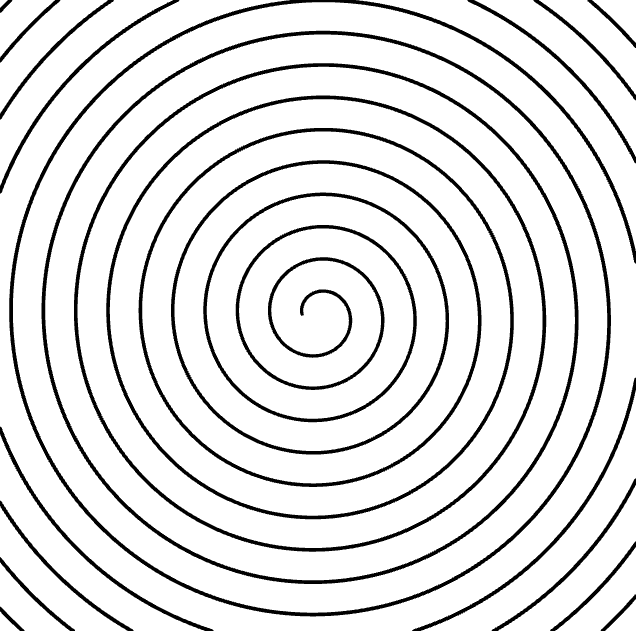
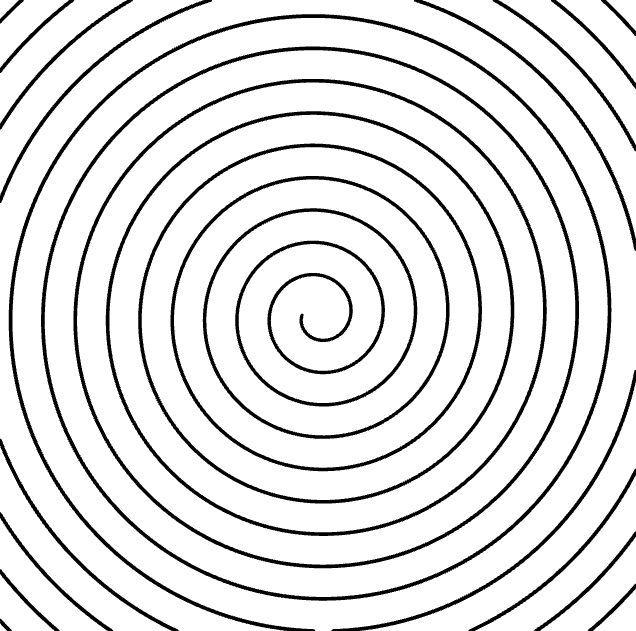
- Locate the Direction parameter.
- Select the rotation direction: CW (clockwise) or CCW (counterclockwise).
- Change this parameter as needed to reverse the rotation direction.
| direction: CW | direction: CCW |
|---|---|
 |
 |
Center
- Find the Center parameter.
- Set the horizontal and vertical coordinates to define the engraving's center.
- You can adjust these values using the slider, entering them manually, or using the Interactive Center Locator.
| center: 40,40 | center: 80,0 | center: 40,80 |
|---|---|---|
.png) |
.png) |
.png) |
Stroke Properties
Additional stroke properties include:
Link to Example
You can use the example file UM3-Fills-Spiral.lines to practice adjusting Spiral fill settings.