Mask Properties
Masks control the visibility of Fills within a Layer. Vexy Lines provides several options in the Properties Panel to refine how your masks look and behave.
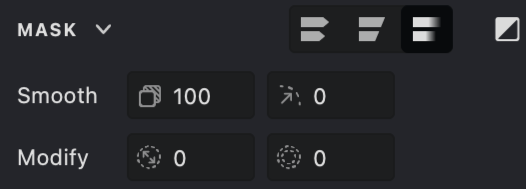
To access these settings, select the Layer containing the mask in the Layers Panel, then locate and expand the Mask section in the Properties Panel.
Invert
 This option instantly reverses the mask, swapping the visible and hidden areas. It’s useful for quickly creating negative-space effects or inverting complex mask shapes without needing to redraw them.
Mask Mode
 Normal Mask Mode clips strokes using the mask while preserving cap styles and the overall integrity of shapes and glyphs.
This produces a more natural, hand-drawn appearance.
 Sharp Mask Mode applies a precise, hard-edge clipping along the mask boundary.
This results in clean and clearly defined edges.
 Smooth Mask Mode enables soft, blended transitions along the mask edges.
Unlike sharp vector clipping, this mode creates gradual fading for smoother and more organic results.
Opacity
 When Smooth Mode is active, Opacity controls the overall transparency of the mask effect. Adjust this setting to blend layers naturally, create subtle overlays, or make the masked area partially see-through. Lower values increase transparency.
Feather
 Also available only in Smooth Mode, Feather softens the mask’s edges by blurring the boundary over a specified distance (radius). Use higher values to create gentle, gradual transitions—ideal for natural-looking blends, vignettes, or soft-focus effects at the mask edge.
Modify
This section offers tools to adjust the shape or edge of your vector mask without redrawing it entirely.
Expand / Contract
 Use this property to uniformly resize the mask boundary. Enter a positive value to Expand the mask area outward, or a negative value to Contract (shrink) it inward. This is useful for fine-tuning overall coverage or creating consistent offsets.
Edge to Stroke
 This converts the mask’s boundary line into a visible stroke centered along the edge. You can adjust the width of this generated stroke, allowing you to create outlines around masked shapes or generate border elements based on the mask.
Opacity and Feather require Smooth Mode to be enabled. For standard, sharp-edged vector masks, leave Smooth Mode disabled.
Simplify
Use the Edit > Simplify menu command to clean up the contours of the active mask, reducing unnecessary points while preserving the overall shape.