Mask Editing
Vexy Lines provides several tools specifically designed for creating and refining masks. Masks define the visible areas of a layer’s fills, acting like stencils. Understanding each tool helps you achieve precise control over your artwork.
Brush Tool B
 Ideal for freehand mask painting and detailed adjustments.
When the Brush tool is active, additional controls appear in the Toolbar, allowing you to switch between adding to the mask (painting white) and removing from the mask (painting black / erasing).
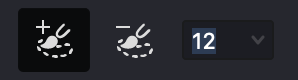
Paint Mask (Add Mode)
With Add mode selected, click and drag to paint white areas onto the mask, revealing the layer’s content where you paint.
Erase Mask (Remove Mode)
Select Remove mode in the Toolbar, then click and drag to paint black areas, concealing the layer’s content.
Alternatively, you can quickly erase while in Add mode by holding down ⌥ as you drag.
Draw Straight Lines
Hold ⇧ and click between two points to create a straight brush stroke segment on the mask. Dragging with ⇧ held down constrains painting to perfectly horizontal or vertical directions.
Adjust Brush Size
- Modify the Size value in the Brush tool’s options within the Toolbar.
- Interactively resize the brush cursor by holding ⌃ and dragging the mouse.
Rectangle Tool I
 Efficient for creating rectangular or square mask areas.
Draw Rectangle
Click and drag to add a new rectangular area to the mask.
Draw Square
Hold ⇧ while dragging to constrain the shape to a perfect square.
Draw from Center
Hold ⌥ while dragging to draw the rectangle outwards from the starting click point.
Auto-Detect
Click once on a distinct rectangular shape in the source image to attempt automatic mask creation (replaces the current mask).
Subtract from Mask
Hold ⌥ and click (auto-detect) or drag to remove a rectangular area from the existing mask.
Ellipse Tool O
 Suitable for creating elliptical or circular mask areas.
Draw Ellipse
Click and drag to add an elliptical area to the mask.
Draw Circle
Hold ⇧ while dragging to constrain the shape to a perfect circle.
Draw from Center
Hold ⌥ while dragging to draw the ellipse outwards from the starting click point.
Auto-Detect
Click once on a distinct circular or elliptical shape in the source image to attempt automatic mask creation (replaces the current mask).
Subtract from Mask
Hold ⌥ and click (auto-detect) or drag to remove an elliptical area from the existing mask.
Freeform Tool S
 Best for drawing custom mask shapes or tracing complex contours.
Draw Custom Shape
Click and drag to draw a freehand shape and add it to the mask. The shape closes automatically when you release the mouse button.
Auto-Detect
Click once on a distinct object or area in the source image to attempt automatic shape detection (replaces the current mask).
Subtract from Mask
Hold ⌥ and click (auto-detect) or drag to remove a custom shape from the existing mask.
Edit Tool V
 Provides precise vector editing capabilities for mask contours and nodes (points).
Working with Mask Contours (Paths)
Select Contour
Click directly on a mask contour line to select it.
Select Multiple Contours
Hold ⇧ while clicking to select additional contours.
Select All Contours
Use ⌘ A (macOS) or ⌃ A (Windows) when the Edit tool is active and focused on the mask.
Move Contours
Drag selected contours to reposition them on the canvas.
Editing Nodes (Points on Contours)
Select Node
Click on a node (square or circular point on the contour) to select it.
Select Multiple Nodes
- Hold ⇧ while clicking nodes.
- Click and drag a rectangular selection box around the desired nodes.
- Hold ⌥ and drag to draw a freeform lasso selection around nodes.
Select All Nodes on a Contour
Select a contour first, then use ⌘ A/⌃ A.
Adjust Shape**
Drag selected nodes to modify the contour’s shape. Bézier handles may appear for adjusting curve segments—drag the handles to change curvature.
Mask Editing Tips
- Improve Visibility: Temporarily hide the layer’s fills (using the Show Fills toggle in the Toolbar or View menu) to see the mask contours more clearly during editing.
- Use Highlights: Ensure Highlight Selection and Highlight Masks options are enabled in the view controls (Toolbar or View menu) to better visualize selected contours and nodes.
- Combine Tools: Use different tools for different tasks (e.g., Freeform for the initial shape, Edit Tool for refinement).
- Remember Function: White areas of the mask reveal the fill; black areas hide it.
Further sections will discuss advanced mask properties and techniques for refining mask appearance and behavior.