Document View Properties
Vexy Lines provides several options to customize how your document and artwork are displayed during the creation process. Adjusting these settings can help you focus on specific elements, improve editing accuracy, and tailor the workspace to your preference.
Toolbar View Controls
The main Toolbar includes quick-access buttons to toggle the visibility of key elements:
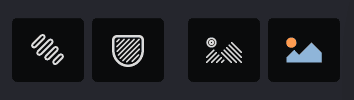
-01.svg) Highlight Selection
Highlight Selection
When enabled, highlights the edges of current selection.
-01.svg) Highlight Masks
Highlight Masks
Highlight the edges of masks and the grid lines of meshes.
 Show Fills
Toggles the visibility of all generated Fill artwork on the Canvas. Turn this off to focus solely on Masks or Source Images.
 Show Source
Toggles the visibility of any Source Images associated with the document or active Group.
View Menu
The View option in the main menu bar provides access to a broader range of display settings, including:
- Zoom level controls and navigation commands.
- Options to show or hide specific user interface panels (like Properties, Layers, etc.).
- Settings for the workspace background color.
- Manual refresh commands and rendering quality options (if applicable).
Workspace Settings
The Properties Panel contains a dedicated VIEW section offering more granular control over display elements:
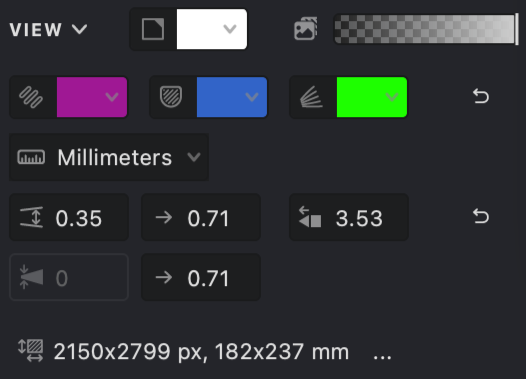
 Document color sets the background color of the document.
 Background image opacity adjusts the transparency of the source image so it does not dominate the working result.
 Selection highlight displays selected elements with an outline.
 Bounds and controls shows control elements, handles, and masks.
 Editable curves highlights underlying curves available for manual editing.
 Units defines the measurement units used in the document.
 Fill interval range sets the minimum and maximum interval values for fills.
 Max cap length controls the maximum sharpening of curve endpoints.
 Line thickness range defines the minimum and maximum thickness of fill lines.