Creating a Group with an Image
To create a new group that includes an image, follow these steps:
- Go to the menu and select Layer -> Add Source.
- In the dialog box that appears, choose the file with the desired image.
- Confirm your selection and position the image within the document.

- Press ⏎ to confirm the image placement or press ⎋ to cancel the operation.
- A new group will be created with the selected image.

Adding a Group via Drag-and-Drop
Another way to create a group in Vexy Lines is by using the drag-and-drop method. Here's how:
- Locate the image you want to use, for instance, in a folder on your computer.
- Drag and drop the image into the Vexy Lines document.
- An action dialog will appear.
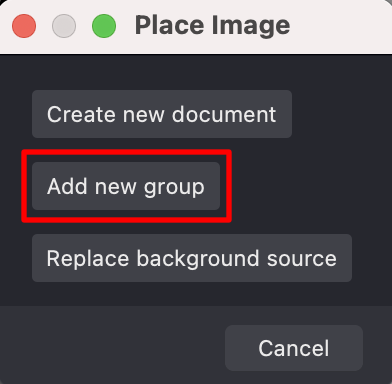
- Select Add new group and position the image within the document.
- Press ⏎ to confirm the image placement or press ⎋ to cancel the operation.
- A new group with the chosen image will be created.